

If the camera or microphone are not enabled when using the Chrome browser in Windows, try the following:
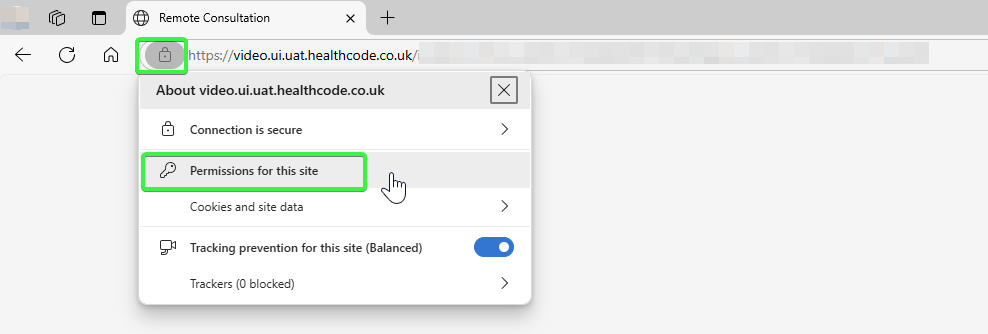
Whilst on the video consultation page (not this help page!) click the “View site information” icon to the left of the website address (usually a padlock icon) then click “Permissions for this site“
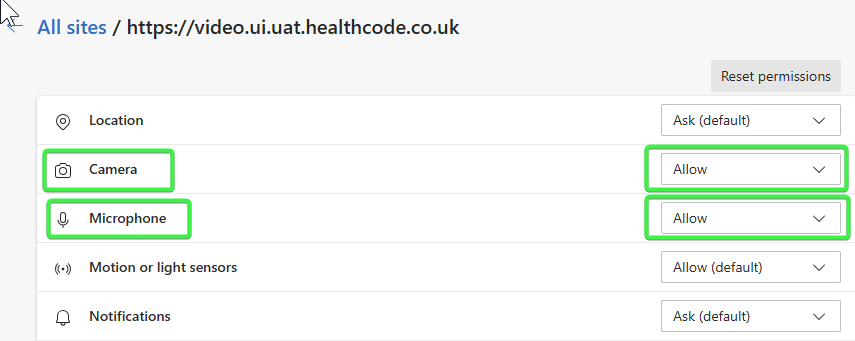
In the settings window, ensure that both “Camera” and “Microphone” are set to “Allow”. If not, click on the drop-down option next to each and select “Allow”.
Click back into the video consultation tab, then click “Refresh”

The camera and microphone should now be accessible.