

If the camera or microphone is not enabled when using the Firefox browser in Windows, try the following:
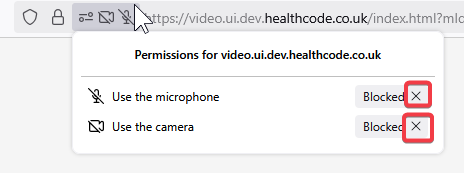
Check to see if the camera and/or microphone icons are displayed to the left of the website address, and if so, examine them closely to determine if they are crossed out.
If either is crossed out, click on it.

On the “Permissions” screen, click the cross next to “Blocked” for any devices listed.
Reload the page by clicking this icon:

You will either be prompted to give permission for both the camera and microphone (in which case, click “Allow” for both) OR the camera and microphones will be displayed WITHOUT being crossed out.
Firefox is now ready to continue with the video consultation.