
If the camera or microphone is not enabled when using the Safari browser on an iPad, try the following:
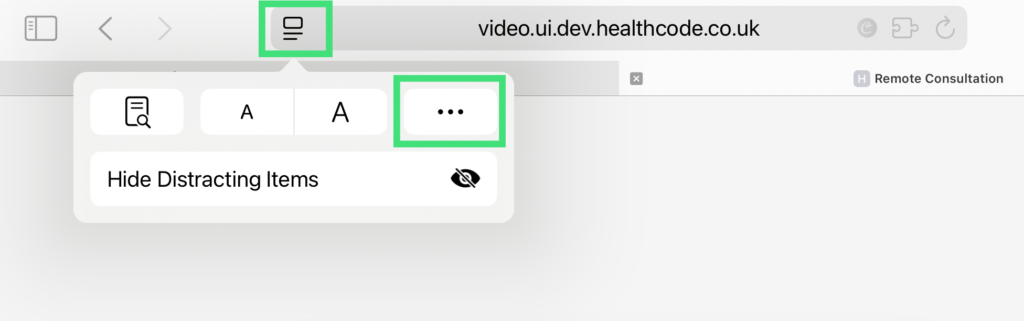
Click the”Page Settings” icon to the left of the website address, then click the “…” (menu) icon.
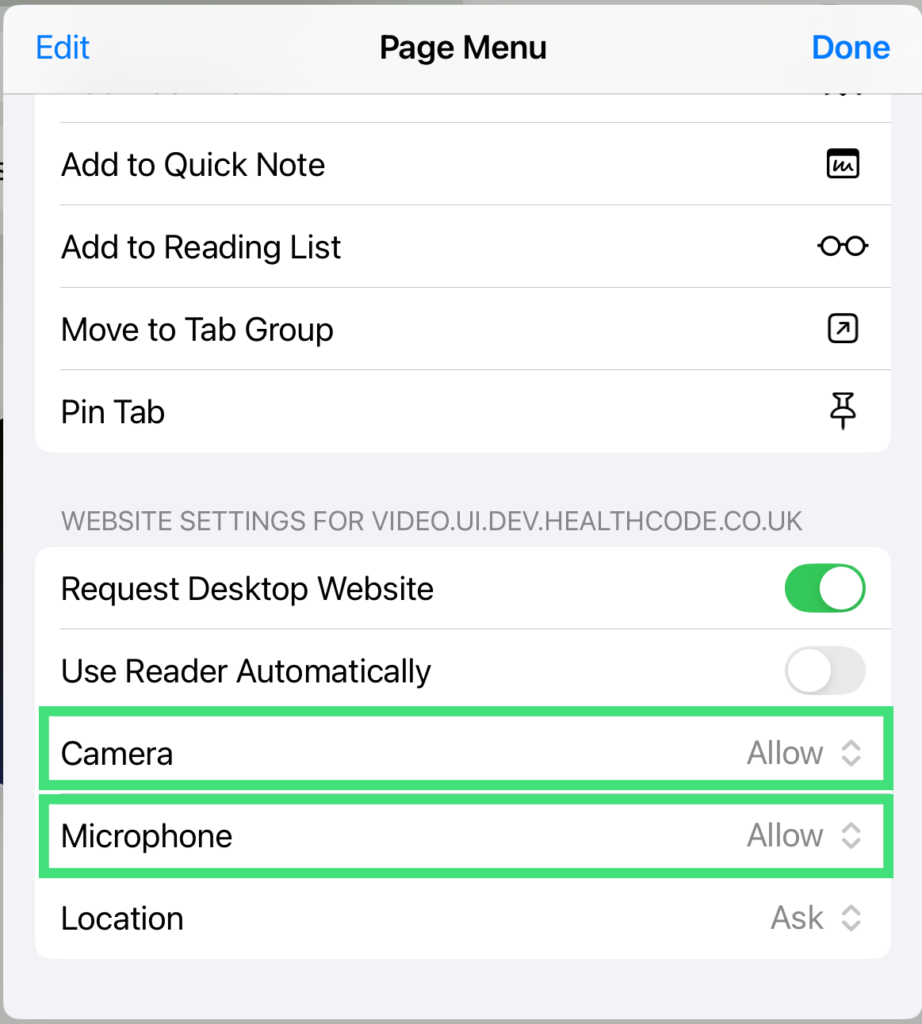
Next, check the “Page Menu” and look for the “Camera” and “Microphone” settings. You may need to scroll down through the list to find these.
Ensure that both “Camera” and “Microphone” are set to “Allow”. If not, click on them and change each to “Allow”.
Click “Done” in the top right corner to close the Page Menu.
Finally, click the “Refresh” button to the right of the website address.

The video consultation should now have access to your camera and microphone.